
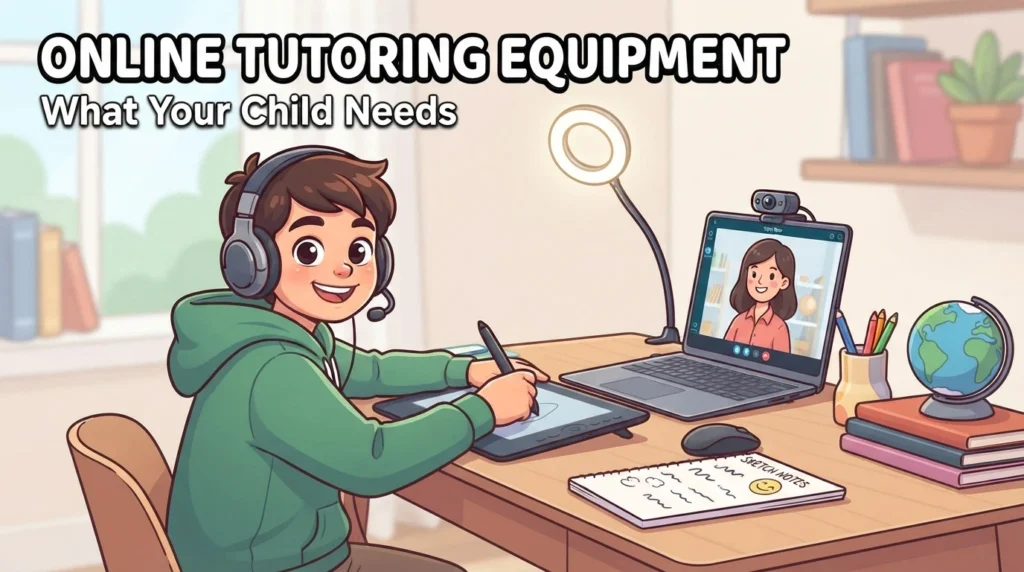
At Guru At Home, we teach UK students live, one-to-one online lessons, so parents often ask us what they need to buy before the first online maths class or science class. The good news is that most children can start online tutoring with equipment you already have at home. You just need: a laptop or tablet, a steady internet connection, working sound and video, and a quiet corner to work in.
Extras such as a headset, stylus or second screen can be useful, but most students don’t need them. This guide explains what your child actually needs, what is optional and how the setup can change by age, subject and Key Stage.
Online Tutoring Equipment Checklist for Parents
Start with the essentials. If your child has these, they can usually take part in a live online lesson without buying specialist equipment.
| Equipment | Do you need it? | What is enough |
|---|---|---|
| Device | Essential | A reliable modern device with a suitable screen |
| Internet | Essential | A steady connection that holds live video and sound |
| Microphone | Essential | The built-in one, as long as speech is clear |
| Sound | Essential | Built-in speakers or any comfortable headset |
| Webcam | Strongly recommended | The built-in camera on a laptop or tablet |
| Notebook and pens | Essential | Basic school stationery on the desk |
| Headphones | Optional | Useful in a noisy or shared room |
| Stylus or digital pen | Optional | Helpful for maths working and diagrams |
| Printer | Usually optional | Only if your tutor sets paper worksheets |
| Second screen | Optional | Nice for older students, never required |
Start with the equipment you already have. If your child can see and hear the tutor clearly, communicate without difficulty and complete the work comfortably, the setup is probably sufficient.
1. Laptop, Tablet or Phone: Which Device Is the Best for Online Tutoring?
A Laptop or Desktop Is the Safest Choice
The larger screen makes it easier to see the tutor, shared worksheets, virtual whiteboards, and other learning materials at the same time. A keyboard also becomes increasingly useful as children move into longer written answers and more demanding schoolwork. That matters most once children start working from several documents at once, which is why a laptop is especially important for students getting tutoring for KS4.
If you are debating whether this level of structured support is right for your child’s exam year, it can help to evaluate if a GCSE tutor is worth it based on your child’s current academic workload.
A Tablet Works Well for Younger Children
A modern tablet is suitable for many primary-age students. It can work well for reading, basic maths, quizzes and lessons that use an interactive whiteboard. Add a stylus and your child can write numbers, circle answers and show their working on screen.
For younger learners in KS1 and KS2, the device type matters far less than one simple question: can your child see the tutor clearly, hear the instructions and join in?
A Smartphone Should Be a Backup
A phone can rescue a lesson when nothing else is available, but it is a poor main device. The screen is too small to show the tutor, the whiteboard and the question at the same time, so children lose track and get tired quickly. Use a laptop or tablet whenever you have one.
2. How Good Does the Internet Connection Need to Be?
Your child does not need the fastest broadband package available. Stability matters more than an impressive speed number.
If your Wi-Fi is unreliable, Ofcom’s guidance on broadband and Wi-Fi problems suggests simple fixes, such as restarting the router and using a network cable instead of Wi-Fi where you can.
Simple ways to improve the connection:
- Put the device where the Wi-Fi signal is strongest.
- Close unnecessary browser tabs and applications.
- Pause large downloads during the lesson.
- Restart the router if connection problems continue.
- Use an Ethernet cable if Wi-Fi remains unreliable.
- Keep the device and browser updated.
There is no need to upgrade your broadband straight away. Test the connection and try the fixes above first.
3. Camera, Microphone and Headphones
Why a Webcam Matters in One-to-One Lessons
In a live one-to-one tutoring class, the camera does real teaching work. It lets the tutor see whether your child has understood, looks unsure, or is ready to move on. That feedback is the whole point of personal tuition, so we strongly recommend keeping the camera on. The camera built into a laptop or tablet is fine. Just place the device so your child’s face is visible and the camera sits near eye level.
Light Matters More Than Camera Quality
Sit your child where their face is reasonably well lit. Avoid a bright window directly behind them, because it turns the face into a dark shape on screen. Normal room light, or daylight from the front or side, does the job.
Is a Separate Microphone Required for Online Classes?
Usually not. The built-in microphone on a laptop or tablet handles a one-to-one lesson well. Before the first class, ask your child to speak at a normal volume and check that their voice comes through clearly. A headset with a microphone is a comfort upgrade, not a requirement.
Are Headphones Necessary During Online Classes?
No. In a quiet room, built-in speakers are fine. Headphones become useful when:
- other family members are close by;
- there is a television, conversation or household noise in the background;
- your child is easily pulled away by outside sounds;
- the device echoes when the tutor speaks.
For younger children, choose comfort over features. You can read what UK parents say about our lessons on our testimonials page.
4. Is a Stylus or Graphics Tablet Worth It?
A stylus is optional, but it earns its place in subjects where children need to show working rather than type an answer. In online science tutoring, for example, a child may need to set out a complex physics calculation, sketch a data graph, or label a biological cell structure. A digital pen makes that feel natural on a touchscreen. The same applies to drawing chemical bonds and writing out molecular equations. Start with what you own and upgrade only when there is a clear reason.
5. What Software Will My Child Need for Online Tutoring?
In most cases your child needs an up-to-date web browser and the joining link for the lesson. Our tutors use digital tools such as virtual whiteboards, screen sharing and quizzes inside the session, so there is no long list of apps to install beforehand. Keep the device and browser updated.
Parent tip: run big updates the day before, not five minutes before the lesson. Some need a restart and take longer than you expect.
6. Printers and School Materials
Most families do not need a printer. Worksheets can be viewed on screen or answered in a notebook, and written work is easy to hold up to the camera.
What helps far more is having the right school materials:
- Notebook or exercise book for working out and notes.
- Pens, pencils, ruler and eraser on the desk, not in another room.
- Calculator, where it suits the year group and subject.
- Current schoolwork, such as homework, recent tests or teacher feedback, so the tutor can see what your child is covering in class.
- Textbooks or reading books being used in the session.
- A glass of water, so your child does not keep leaving the desk.
7. How to Set Up the Desk Before Online Tutoring?
Good equipment cannot compensate for a distracting study environment. Your child will struggle to concentrate if the television is on in the same room.
Use a desk or table where you can. There should be room for the device, a notebook and stationery.
Cut the obvious distractions. Put spare devices away, silence notifications and keep toys and games out of the learning space.
Make the screen easy to look at. Set the device so your child can see it without hunching or holding it.
8. What Equipment Does My Child Need by Key Stage?
The right setup changes as schoolwork gets more demanding.
KS1, Years 1 to 2 – Laptop or tablet, built-in camera and microphone, simple stationery and a quiet space. Useful extras: a tablet stand, comfortable headphones and a stylus.
KS2, Years 3 to 6 – Laptop or tablet, notebook, current schoolwork and a steady connection. Useful extras: a stylus and headphones.
KS3, Years 7 to 9 – Laptop is preferred for KS3 tutoring, up-to-date browser, notebook and a calculator where needed. Useful extras: a headset, a stylus for maths and science, and a larger screen.
KS4 and GCSE, Years 10 to 11 – Laptop or desktop, subject resources, calculator and a reliable connection. Useful extras: a stylus or graphics tablet for equations, plus a second screen if you already have one.
KS5 and A-Level, Years 12 to 13 – Laptop or desktop, digital or paper notes and any subject-specific tools. Guru At Home also provides online KS5 tutoring for A-Level students.
9. The Five-Minute Check Before the First Lesson
Run this once before the first session, and again whenever your child moves to a different device or room.
- Charge the device or plug it in. Never start a lesson on a low battery.
- Open the lesson link early and check that it loads properly.
- Test the camera, microphone and sound. Make sure your child can be seen and heard.
- Check the Wi-Fi signal in that room and move closer to the router if it is weak.
- Lay out school materials: notebook, stationery, homework and any set resources.
- Close distractions. Silence notifications and shut unrelated tabs.
- Join a few minutes early, so a small login or audio problem does not eat into teaching time.
10. Quick Fixes If Something Goes Wrong During the Lesson
Technical hiccups happen to everyone. Check the simple causes first instead of buying new equipment.
- No sound? Check the volume and make sure the right speakers or headphones are selected.
- Tutor cannot hear your child? Check that the browser or app has microphone permission and the correct microphone is chosen.
- Video frozen? Close other apps, check the Wi-Fi and rejoin the lesson.
- Screen too small? Switch from a phone to a laptop or tablet, or use full-screen mode.
- Link won’t open? Try an up-to-date mainstream browser, then contact your tutoring provider.
11. How Online Lessons Work at Guru At Home
Our lessons are live and one-to-one, taught by online tutors who hold a bachelor’s or master’s degree in their subject.. Inside the session, tutors use virtual whiteboards, screen sharing and quizzes so your child can answer, write and ask questions in real time rather than sitting and watching. You can see what other UK families say about us on our Google profile.
The easiest way to test your setup is to use it. Book a free trial class and see how your child responds to a live one-to-one lesson before you spend anything on extras.
Frequently Asked Questions
Can my child do online tutoring on an iPad or tablet?
Yes. A modern tablet works well, especially for younger children. Check that the screen is large enough to follow the lesson and that the camera, microphone and connection are reliable. A stand and stylus help, but they are optional.
Does my child need a laptop for online tutoring?
Not always, a laptop is the most flexible choice, particularly for GCSE and A-Level study, but many primary-age children learn perfectly well on a tablet. The best device is the one your child can use comfortably for live video, digital resources and written work.
Can online tutoring work without a webcam?
Some platforms allow audio only, but we strongly recommend a camera for one-to-one teaching because the tutor needs to see how your child is responding. A built-in camera is usually enough.
Are headphones necessary for online tutoring?
No. In a quiet room with clear speakers, headphones are not needed. They help when there is background noise, when siblings are nearby, or when the device echoes.
How fast does my internet need to be for online tutoring?
There is no single number that fits every home. Aim for stability rather than speed: clear video and sound with no repeated freezing. If other household activity slows the lesson, pause data-heavy tasks while the class is on.
Does my child need a stylus for online maths tutoring?
No, but it makes handwritten working, graphs and equations easier to show. Start with your current setup and add a stylus only if your child writes on the whiteboard often.
Should I buy new equipment before a trial lesson?
No. Use the laptop, desktop or tablet you already own. A trial lesson is the best way to find out whether your setup is comfortable before spending money.
Keep Your Online Tutoring Setup Simple
Your child does not need a powerful computer or a desk full of gadgets to get real value from online tutoring. A reliable laptop or tablet, a steady connection, working sound and video, basic stationery and a calm place to work will cover almost every family.
Start simple, test everything before the first session, keep the device updated, and add extras only when they solve a real problem for your child.